
Put Your AI Assistant to Work in HelpSpot: Five Things to Try With MCP
If your organization rolled out Claude or ChatGPT this year, there's a decent chance you've already done the thing where you copy a ticket out of HelpSpot, paste it into a chat window, ask a question, and then paste the answer back.
As a workflow, it works, but it's also a little silly, especially when the answer depends on something the assistant can't see, and you have to go looking for it yourself (the customer's last three tickets, say, or the KB article you wrote about this exact problem).
Here's the good news: as of HelpSpot 5.8, you can skip the copy-and-paste entirely. HelpSpot now includes a Model Context Protocol (MCP) server. MCP is an open standard that lets an AI assistant use other tools and applications, so instead of you describing your help desk to the assistant, it can go look for itself.
We announced it back in June, and we've been using it in our own support queue ever since. What we haven't done is show you what it's actually good for day to day.
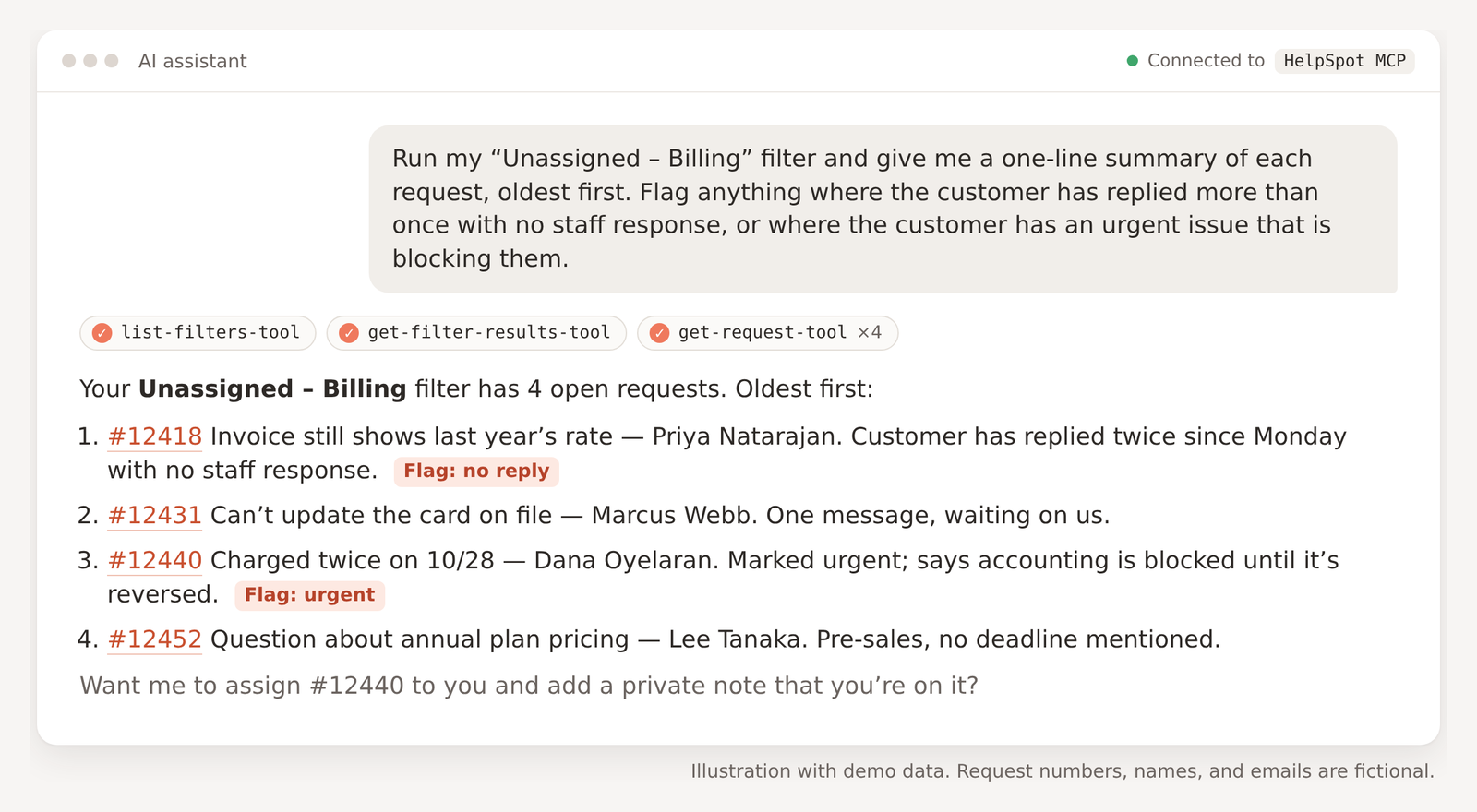
Ask for what needs your attention, get a list with links back into HelpSpot. Illustration with demo data.
But first: nothing happens unless you say so
We know that some organizations either can't or prefer not to use an MCP server with HelpSpot, so we've made it configurable in Admin settings.
More specifically:
The MCP server is off by default. An administrator has to turn it on in Admin > Settings > MCP before anyone can connect anything.
It can only do what you can do. Every action runs as the staff member who is logged in and using the MCP connection, with that person's existing permissions. If you can't see a category in HelpSpot, your AI assistant can't see it either.
You can make it look-but-don't-touch. The same settings screen lists every tool the server exposes, each with its own on/off switch, and a Disable all write tools button that leaves only the read-only tools enabled. If you want to start by letting people ask questions and nothing else, that's one click.
You can keep customers out of it entirely. The tools that add notes come in two flavors: a public variant that can email the customer, and a private variant that never sends external email. Enable the private one and the assistant can log internal notes all day without a customer ever hearing from it.
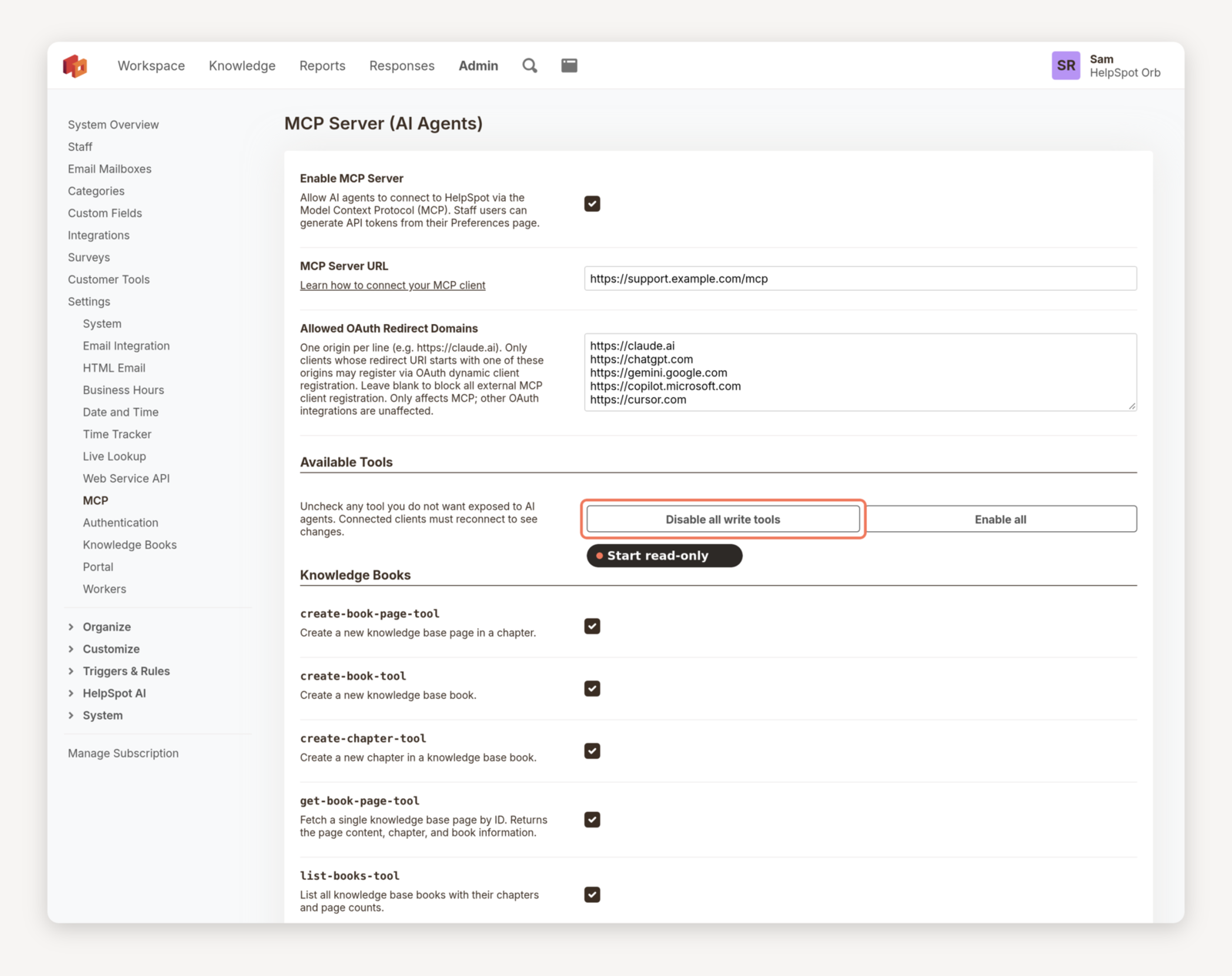
Admin > Settings > MCP: turn the server on, pick which tools are available, or disable every write tool in one click.
Our suggestion: start read-only. Once your team has a feel for what the assistant gets right (and what it routinely gets wrong, so you know how to correct it), turn on the write tools you actually want.
Once you've configured the MCP server to work the way you want and are confident in its abilities, you're ready to enhance your workflows. Here are five we recommend to get started.
1. Ask "what needs my attention?" without opening a single filter
This is the lowest-stakes place to start, and it's also one of the highest-value workflows.
The server can list your saved filters and run them, and it can search requests by status, category, assignee, date, customer, and custom field. So a prompt like this works:
Run my "Unassigned – Billing" filter and give me a one-line summary of each request, oldest first. Flag anything where the customer has replied more than once with no staff response, or where the customer has an urgent issue that is blocking them.
What you get back is a readable list with links straight into HelpSpot. (Every request the server returns comes with a clickable link, so you don't have to go hunting for each ticket.)
A couple of variations we like:
Which open requests assigned to me were opened more than 5 days ago?
Show me everything from anyone at @acme.com in the last 30 days and summarize the themes.
That second one uses wildcard matching on the customer email, which is handy for account-level questions that a filter can't quite answer.
2. Get the whole story on a customer before you reply (or before the call)
What do you do when a customer writes in with "that weird thing is happening again," and you have no idea what the weird thing is or what you've already done to troubleshoot it?
Normally: search, open, skim, open, skim, open, skim. With MCP, you ask:
Pull up every request from jsmith@example.com, including closed ones. Summarize what each one was about, how it was resolved, and whether anything looks unresolved or repeated.
The assistant searches by email, fetches each request with its history, and hands you the timeline. On our side, this has turned long deep dives into short reviews, and it's made our replies better, because we're responding to the customer's whole history instead of the last message.
It also makes customer calls more productive and less frustrating for everyone involved; you're coming in with all of the knowledge you need to solve their problem, and customers don't have to repeat themselves so that you can start collaborating.
One gotcha worth knowing: when the server returns request history, long notes are trimmed to 500 characters so the assistant doesn't drown in text. If a detail you need is in a long note, ask the assistant to fetch that specific history entry in full. It can; it just won't by default.
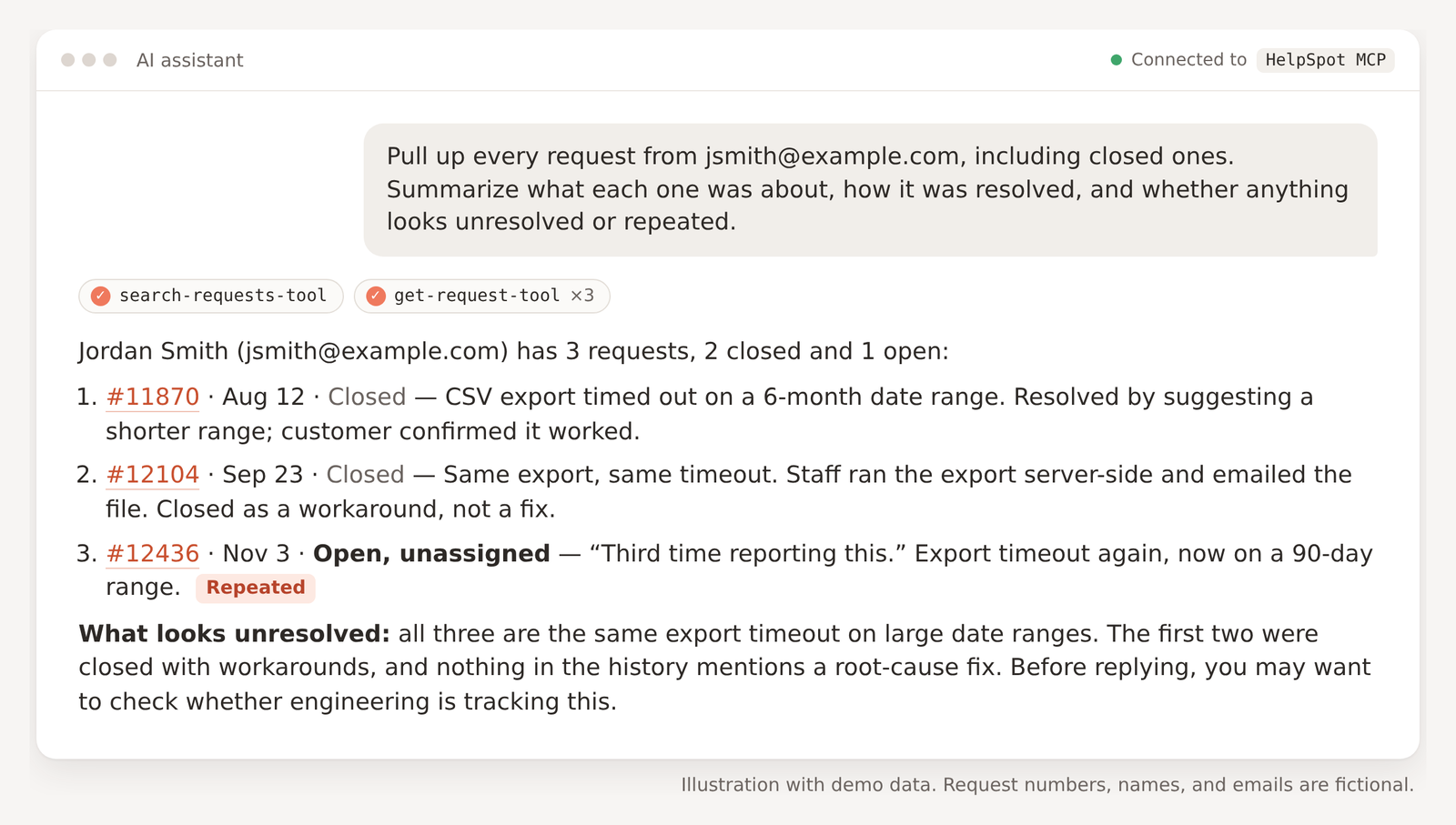
One prompt, the whole customer history. Illustration with demo data.
3. Get a count without building a report
Last month we wrote about when to use a filter and when to use a report, and the short version was: if the answer is a number, use a report. That's still true. But sometimes you want one number, once, and building a report for it feels like renting a truck to move a lamp.
The MCP server has an aggregation tool for exactly this. It groups and counts requests by category, status, assignee, channel, custom field, or customer, with the same date filters as search:
How many requests did we open per category in October? Which category grew the most compared to September?
Who closed the most requests last week, and what's the breakdown by status for what's still open?
This use of the MCP server can also empower your team, who may not have the skills or access to build custom reports:
How much time have I logged per category this month?
List my open requests, longest customer wait first. Which ones have I never replied to?
Since the MCP server only has the permissions the staff member has, they can use it to gather data on their own tickets or performance without accidentally accessing anyone else's.
In either case, your AI assistant analyzes the data and builds the report, and (depending on your client) can build charts and graphs as well. If you need the same report every Monday, build a scheduled report; that's still the right tool for recurring questions.
If you need it right now in a meeting, though, while someone's waiting on you, that's when the MCP server tends to shine: you can get the data you need quickly and in a polished package.
4. Give your knowledge base the housekeeping it deserves
This is the one we're most excited about, because it's where the assistant does work the team often couldn't get to otherwise.
The server can list your books and chapters, search pages, read a page, and (if you've enabled the write tools) create and update pages. As of 5.8.8 it can upload images to a page, too. That opens up a few things:
Audit for outdated references.
Search our knowledge base for any page that mentions "PHP 7" and list them with a link. For each one, tell me whether the reference is still accurate based on the page content.
Draft an article from a resolved ticket.
Read request #48213. Draft a KB article explaining the fix, in the same tone as our "Email Mailboxes" chapter. Don't publish it; show me the draft first.
Tag pages in bulk. There's no bulk tag editor in the knowledge book interface, but the update tool accepts a list of tags, so you can ask the assistant to apply a tag to every page in a book. One thing to plan around: the tag list you send replaces the page's existing tags rather than adding to them, and there's currently no tool that reads a page's existing tags. If your pages already have tags you want to keep, tell the assistant which ones so it can include them.
And a word of caution, one we follow ourselves: have the assistant show you drafts before it saves anything to HelpSpot. The KB is customer-facing, and "confidently wrong" is still a real failure mode for most AI tools.
Configure your client to ask for confirmation before any change (almost all should support this), and keep a human between the draft and the Publish button.
A tip for taking your KB workflow up a notch: work with your AI assistant to create a voice and style guide based on the articles already in your knowledge base and your company's voice. Not only will this result in higher-quality documentation (because your AI assistant will know exactly what your articles should look and sound like), but it'll also save you a lot of time when reviewing drafts.
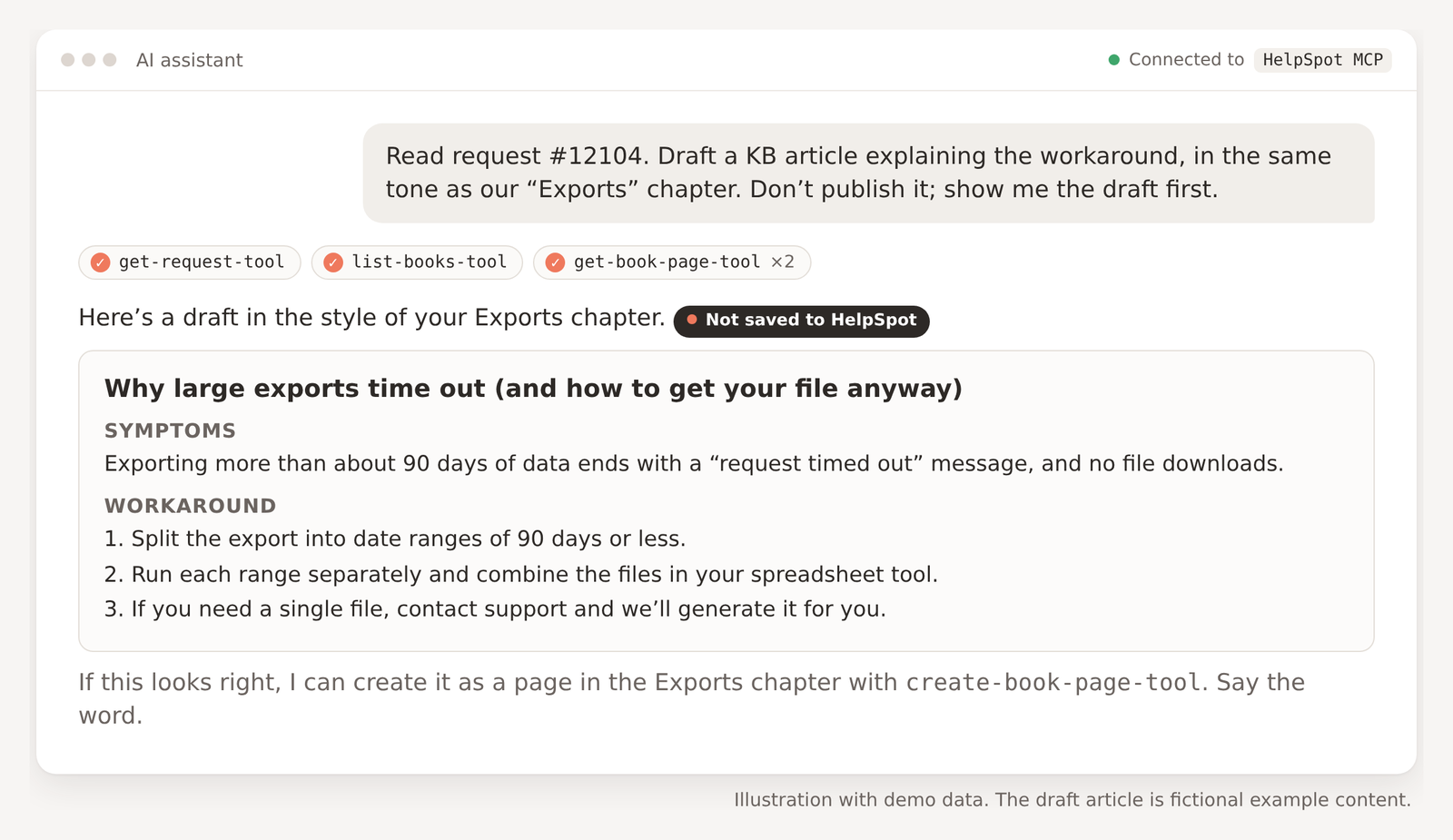
Have the assistant show you the draft before anything lands in your KB. Illustration with demo data.
5. Connect HelpSpot to the rest of your tools
Here's where MCP earns its keep over a plain API integration. Your assistant isn't limited to HelpSpot. If it's also connected to your bug tracker, your meeting notes app, your CRM, your calendar, or your docs, it can work across all of them in one conversation.
A few patterns we'd suggest, and that the server is built to handle:
Close the loop with engineering.
Find every open request mentioning "export timeout." Add a private note to each one linking to Linear issue ENG-442 and saying we're tracking it. Don't email the customers.
(This is exactly what the private update tool is for. Your engineers get more context, and the customers hear from a human when there's actually news.)
Prep for customer calls.
Look at my calendar and find all of the customer meetings I have this week. For each meeting, pull the customer's open HelpSpot requests and the notes from their account in our CRM, and give me a one-page brief.
Triage with context from elsewhere.
For each unassigned request in the "Integrations" category, check our internal docs for a known workaround. If there is one, add it as a private note and assign the request to me.
The benefit of these workflows is that each one takes just one prompt; none of them requires anyone to write code, and each saves you the trouble of doing it manually.
Getting connected
If you'd like to try one of the workflows above, setting up the MCP server is relatively quick, although the details depend on your client. If you're setting up Claude, for instance, here's what that might look like:
- An administrator turns on Enable MCP Server in Admin > Settings > MCP and copies the MCP Server URL (it ends in
/mcp). - For clients that use OAuth (Claude Desktop, for example), the admin adds the client's origin, such as
https://claude.ai, to Allowed OAuth Redirect Domains. This list is empty by default, which blocks everything until you say otherwise. - Each staff member connects their own client, either through the browser OAuth flow or with a personal access token generated from their Preferences page.
We have step-by-step guides for Claude Desktop, Claude Code, and ChatGPT.
Note: If you're on 5.8.4 or earlier and personal access tokens are giving you an "invalid token structure" error, that's a known issue fixed in 5.8.5, so upgrade before you spend an afternoon on it.
A sidekick for the people who know the work
We know our readers have differing opinions on AI: what it should be used for, or whether it should be used at all.
Our primary goal is not to tell you how to use AI features like the MCP server, but to support whatever your use case is for them (including no use case). That's why we've made HelpSpot's existing and future AI features configurable and powerful but totally optional. If you don't use them, HelpSpot remains the same great software for communicating with your customers.
HelpSpot's MCP server gives your AI assistant a way into your help desk, so it can help you understand your customers better and faster, make your team more productive, and make your knowledge base more informative.
But it can't replace you, and it doesn't know your customers the way you do. What it does is take the manual and tedious stuff off your plate so you can spend more time on the things that matter to you.
The queue is still yours. The chores can be the AI's.
Want the full tool list and admin reference? See the MCP Server Admin Settings page, or start with the HelpSpot MCP Overview and the MCP Setup Guide.
No. Once an administrator enables the server and your client is connected, you work with HelpSpot through normal conversation with your AI assistant.
No. Every MCP action runs as the staff member who connected, with that person's HelpSpot permissions. An assistant can only see and change what you can.
Yes. In Admin > Settings > MCP, use Disable all write tools to leave only read-only tools enabled. You can also turn individual tools on or off.
